Rendering a photo of an existing kitchen.
For a refit or a respray, the customer already has the room. Photograph it, and Asterlyn Space shows the same kitchen in the new finishes, keeping the room, the light and the camera.
A drawing is built into a room from scratch. A photo is treated differently: it’s a finished room, so it’s renovated in place. The walls, the window, the ceiling, the light coming in and the angle you stood at are built to stay as they are, with your chosen materials put on the cabinetry and surfaces.
That makes it a good fit for jobs where the carcasses (cabinet boxes) stay and the fronts, benchtop (countertop) or splashback (backsplash) change, and for showing a customer their own kitchen rather than a generic one.
Render a photo
Create a project and upload the photo
Pick the room when you create the project, the same as for a drawing. Upload the photo as a JPG, PNG or WebP image, up to 25 MB.
Check Read this file as
On the project page, under How we read your file, the answer should be Photo of an existing kitchen. If it says Drawing, change it.
Choose your finishes
Open Materials and set the cabinet colours, benchtop, splashback, floor and the rest, the same way you would for a drawing. Paste supplier swatches where you have them.
Confirm and render
The photo is renovated in place with your materials on it. A render takes a couple of minutes.
The Read this file as switch
A drawing and a photo are rendered differently, so it matters which one your file is read as. The app guesses when you upload, and you can correct it on the project page. The switch has three answers:
- Drawing, for a line drawing or a plain 3D visual.
- Drawing with the colours already on it, for a coloured 3D visual whose finishes you want kept.
- Photo of an existing kitchen, for a real photograph of a real room.
A photoreal 3D visual can look like either, which is where a wrong guess can happen. If you uploaded a CAD render, it isn’t a photo, even if it looks like one. The ticks for grey feature runs and hand sketches only apply to drawings, so they don’t show for a photo.
What to photograph
These are ordinary photography habits rather than rules the app enforces, but they give the render a clearer picture to work from:
- Get the whole kitchen in the frame. Stand back, or in a doorway, so every run you want changed is in the picture. The render works on what the photo shows.
- Shoot as straight-on as the room allows. A run seen end-on shows almost none of its fronts.
- Hold the phone level so the verticals stay upright.
- Use good light. Daylight with the lights on is easier to read than a dim room at night. The render keeps the light of the photo.
- Clear what you can. Things left on the benchtop and in front of the cabinets are part of the photo.
- Use the full-size image, not a thumbnail from a message thread.
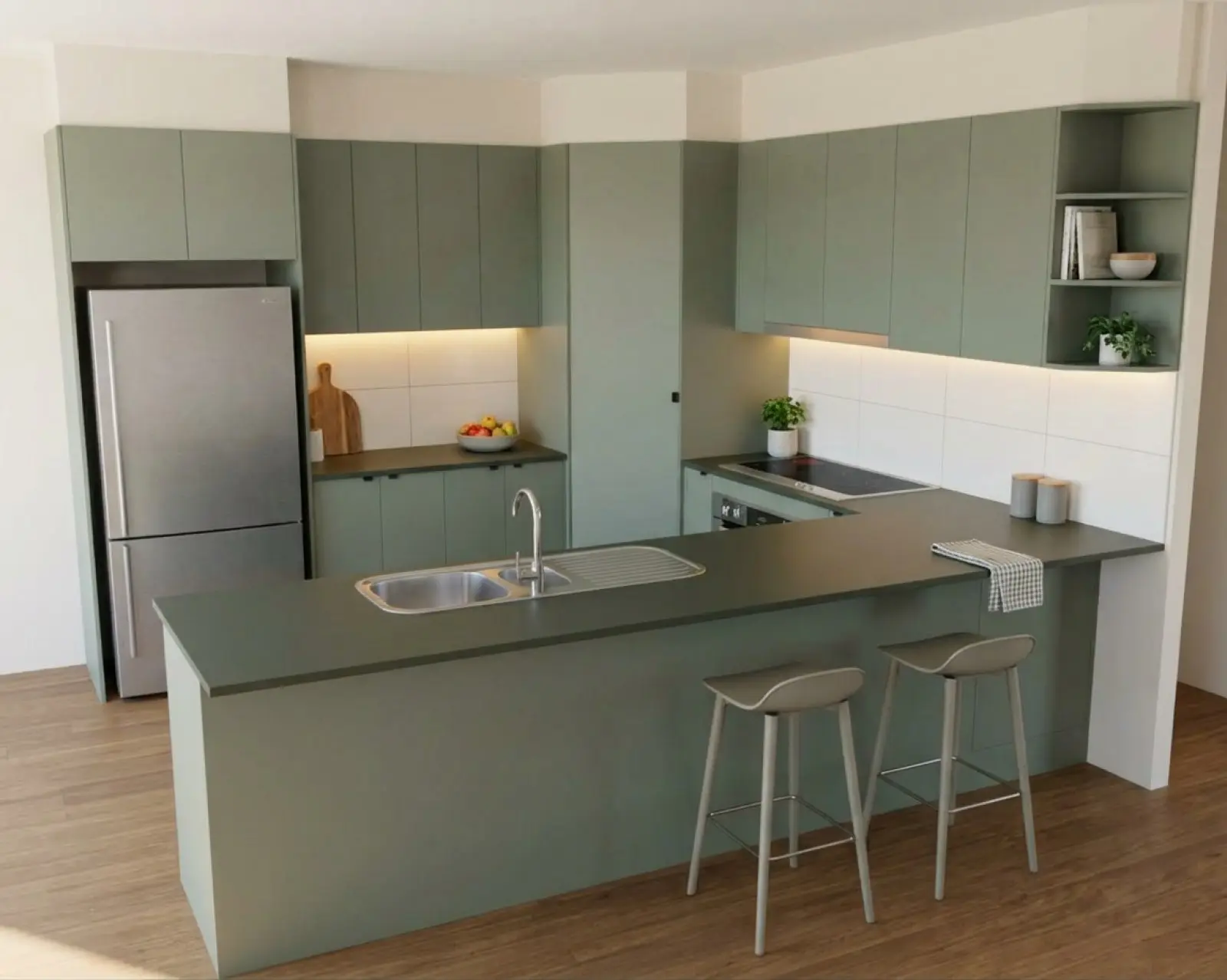
Renders are AI-generated. They closely match the finishes you pick, but they aren't exact. Check real samples before you order.
The matched photo-to-settings-to-output example is still pending. Thephoto feature page marks each step with clearly labelled placeholders until a tested, approved real example is ready.
Changing it afterwards
Once the first render is back, you work on it the way you would any render. Change a colour on the picture you have, mark part of it and refine it, compare versions, and take the one you settle on up to 2K at the end. See fixing part of a render for how to mark and word a change.
The customer’s home
A photo of a home often shows the owner’s belongings, and sometimes people. Ask before you photograph someone else’s home and upload it. Our terms and your data page cover how uploads are handled. We don’t train any AI model on the photos you upload.
Related
Try it on a drawing you already have.
Your first five renders are free. No card needed.