Fixing part of a render.
When one part of a render is wrong, mark that part and change it. Rendering again from scratch re-rolls everything, including the parts that already came out right.
You don’t have to get everything right first go. It’s usually quicker to render, look at it, then fix the parts that are wrong. The tool for that in Asterlyn Space is the refine: you mark an area on the render, say what it should be, and only that area is redrawn. Everything outside your mark is built to stay as it is.
Mark and refine
Mark the area
Draw a box or a shape on the render around the part that is wrong. You can mark up to three areas in one pass.
Pick the type of change
Appearance, Object / detail or Text instruction. Each is explained below.
Say what it should be
Pick the colour, or type the change. In a text refine, give each marked area its own sentence.
Render
A refine is one credit and takes a couple of minutes. It arrives as a new version, and the one you had is kept.
Pick the right type
The type you pick decides what the marked area is allowed to do.
- Appearance changes the colour, material or finish of what you mark, and nothing else. Doors stay the same doors and handles stay put. Pick it for “these cabinets in a different colour”. You can take the colour from your library or paste a supplier swatch (see matching a supplier colour).
- Object / detail lets the marked area change shape: add, remove or swap something. Pick it for “put a wine rack here”, “take that shelf out” or a cooktop swapped for another. Appearance can’t do these, because it only recolours what is already there.
- Text instruction is the change in your own words. Mark an area to change one spot, or type without marking anything to change the whole render.
There’s also a Handles type. It changes the handles (pulls) and the edge detail of the fronts and nothing else, and it’s the only pass allowed to take handles off. Mark nothing for it; say which fronts instead, like “finger pull on the lower doors and drawers”.
Cover the whole run
If you want a run a different colour, cover the whole run, right to where it ends. If your box stops halfway along a door, the edge is pushed out to the nearest join for you. A box that clearly covers the run is still more reliable. A mark that only clips the edge of a door can change less than you expect.
For a whole run there’s often an easier way. The Materials panel has a colour for each run: overheads (upper cabinets), base cabinets, island, tall units, oven tower, the cabinet above the fridge, open shelving and panels. Set the colour there and press Apply my changes. Marking is for part of a run, or for something the panel doesn’t cover.
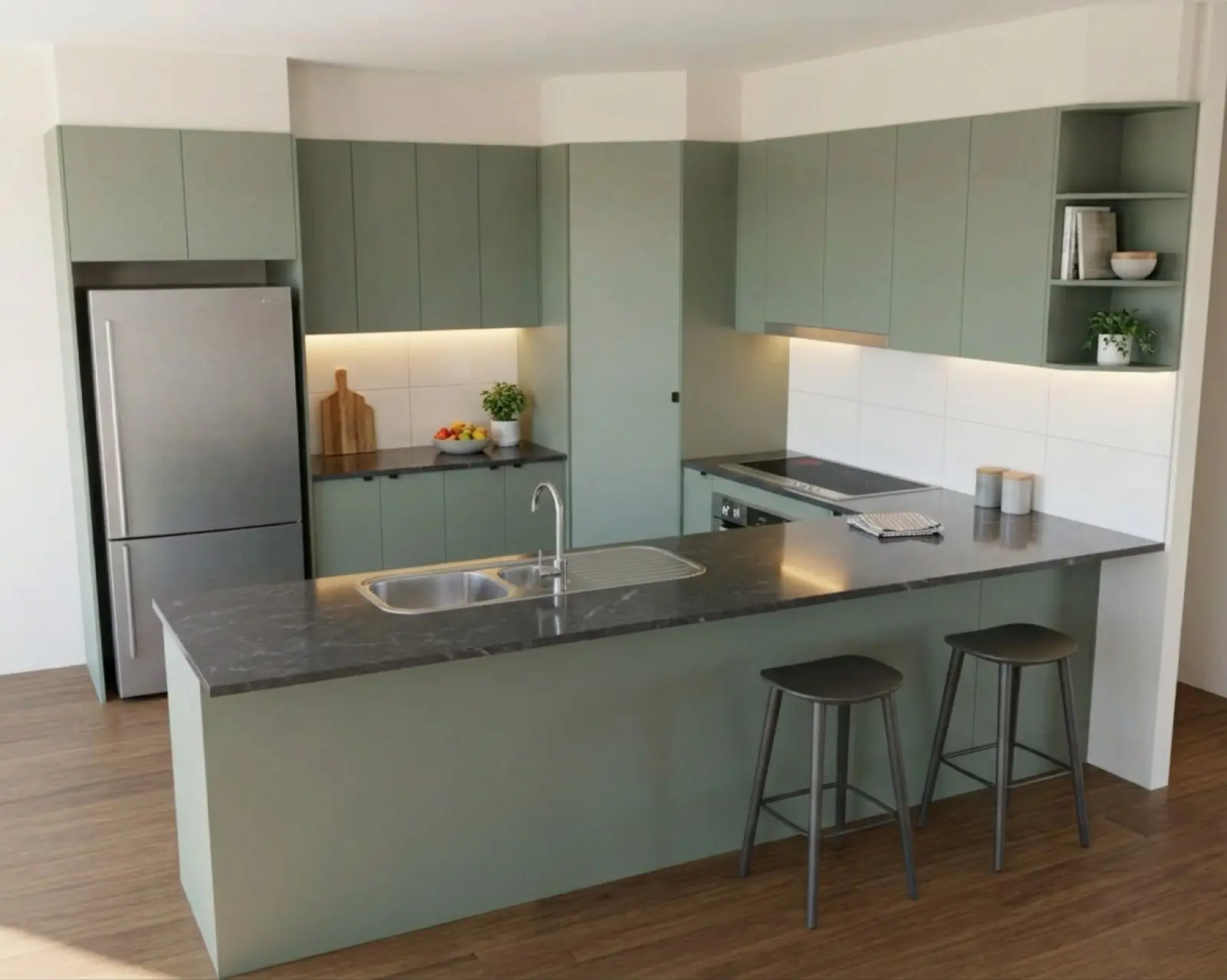
Renders are AI-generated. They closely match the finishes you pick, but they aren't exact. Check real samples before you order.
Words that work
When a text refine does nothing, it’s usually because the words name a thing without saying what to do with it. Say what the area becomes, or what to do to it.
- “Plain painted wall, no cabinet” works. “Wall colour” doesn’t, because it names a thing and gives no change.
- “Make these overhead cabinets matte charcoal” works. “Overhead cabinets” gives the render nothing to act on.
If you asked for a change and nothing happened, check the wording first, then check the mark actually covers what you meant.
When to use Draw it again
Draw it again throws the picture away and draws the room fresh. Use it when the drawing itself came back wrong, like a missing run or a cabinet that was invented. A refine is built to keep everything outside the mark, so it can’t fix a picture that is wrong all over.
Know what it costs before you press it:
- It comes back in a fresh showroom scheme and clears your colour picks.
- Choosing your colours again and putting them on is a second credit.
- Handles, construction and fixtures only come through on a new picture. They live on the How it’s built page, with a Draw it again with these button at the bottom.
So the order is: Draw it again only when the room is wrong, refine when a part is wrong, and use the Materials panel when a whole run just needs a new colour.
After several changes
Each pass redraws the last one, so fine detail softens a little after several changes. When you’ve settled on the render, take it up to 2K in Full size. It draws the same room again at size, which brings that detail back. It costs 2 credits, and if anything comes back changed, nothing is delivered and the credits go back.
Related
Try it on a drawing you already have.
Your first five renders are free. No card needed.